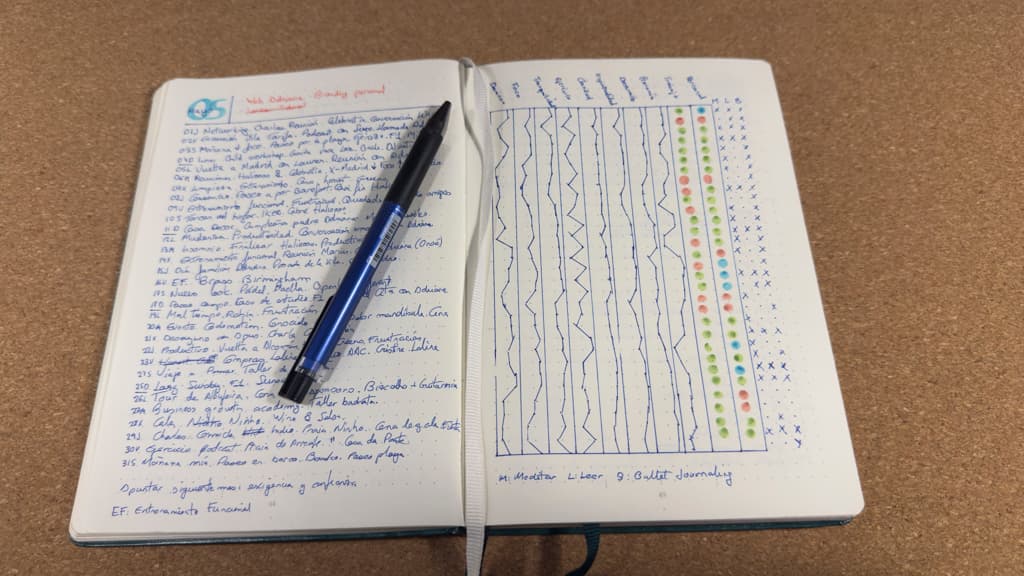
I'm an inbox zero type of person. I use extensively the P.A.R.A method. I do Bullet Journaling. I follow Atomic HabitsOpen in a new tab. I have a Second Brain in NotionOpen in a new tab.
In this blogpost I'm going to explain how all of these tools help me reach my maximum digital productivity.
I ordered the sections by value, from less to more.
#P.A.R.A Method
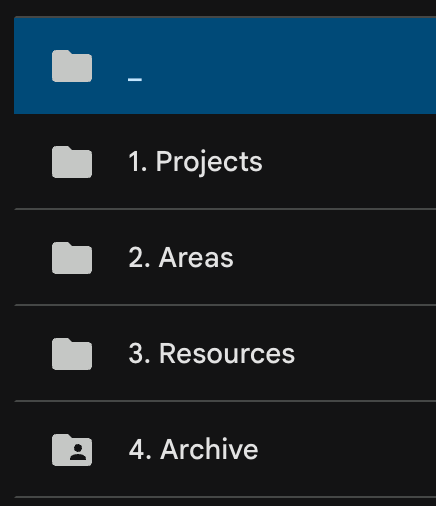
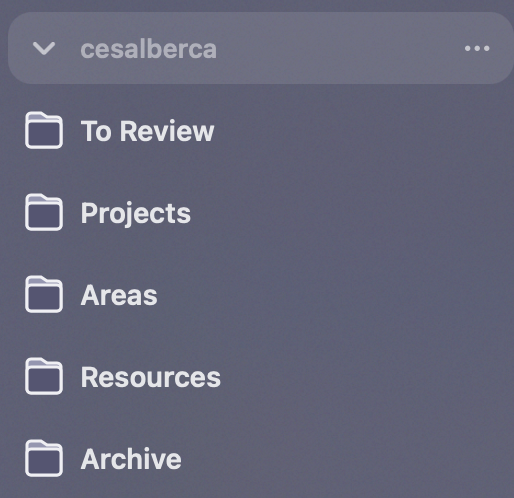
Tiago ForteOpen in a new tab created the P.A.R.A method. It's a system where you organise digital information as follows:
- Projects: short-term efforts in your work or life that you are working on now
- Areas: long-term responsibilities you want to manage over time
- Resources: topics or interests that may be useful in the future
- Archive: inactive items from the other categories
Here is an example of my Google DriveOpen in a new tab file structure, and also my browser ArcOpen in a new tab folders (more on that later):
Wondering what the _ folder is? It serves as a quick access folder for temporary documents, although I usually move files that are bound to time to Google CalendarOpen in a new tab as an attachment.
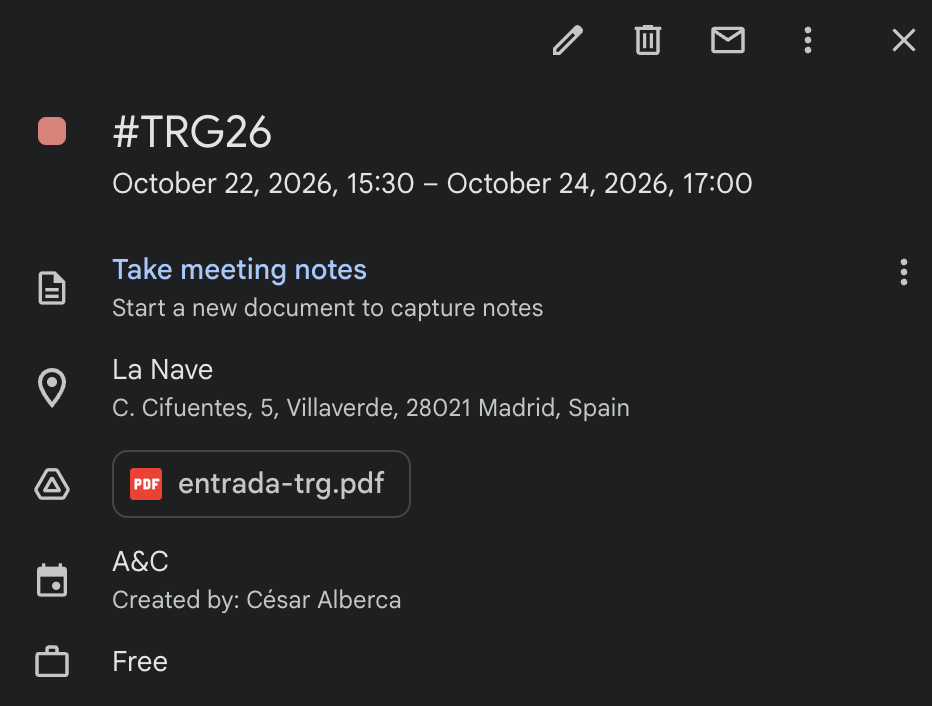
What I find most useful is moving things from Projects or Areas to Archive. It's great, since I can recover them in the future if I need to, and being in the archive means they take less cognitive load.
Think you got it? Try sorting these:
Where does it go? Sort it the P.A.R.A way
Item 1 of 4
The website redesign you are delivering this month
#Inbox Zero
I have . Most of the time.
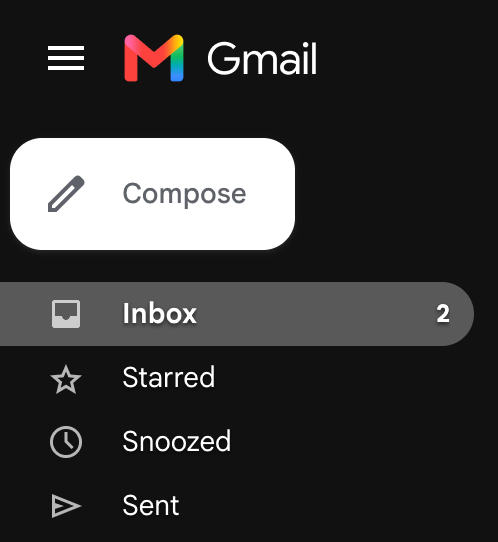
The way I do it is by unsubscribing from every possible email, newsletter (except this one, of course!), or service that sends me unwanted email. I only want to receive things I'm really interested in.

Sometimes I go even further. For those transactional emails I can't unsubscribe from, that are sent by a service I rarely use (yes, those pesky "we've updated our terms of service" emails, well, thank you for letting me know for the fifth time), I just go ahead and delete that account.
I follow this rule for every work email I have, not only my personal email.
Do you have +23,431 emails? Well, just go ahead, select them all, and delete them. No, don't do that, I'm kidding, just mark them as read and start unsubscribing. Gmail now offers a Manage Subscriptions pageOpen in a new tab.
How far are you from inbox zero? Be honest:
Inbox zero calculator
#Apple
I'm not afraid to say I'm an 🍏 fan. Here are some of my favorite features.
#Shortcuts
I have 4 custom-built shortcuts:
- Timezone converterOpen in a new tab. I also trigger this one on my Mac (yes, Apple ShortcutsOpen in a new tab can be reused across macOS and iOS).
- Currency converter shortcut to local currencyOpen in a new tab and Currency converter shortcut to foreign currencyOpen in a new tab. Whenever I travel, I edit the shortcut with the correct currency.
- Lock shortcutOpen in a new tab, so I can set the display to never sleep, and it creates a reminder so that I can turn it off.
- Shortcut to open an image so that I can see my supplementation easily. It's silly, but effective, so I never forget to take it.
#Copy paste
I can copy on the laptop and paste on the phone, and vice versa, thanks to Universal ClipboardOpen in a new tab. Even images. So useful. So simple. Amazing.
#AirDrop
This is one of the most useful Apple features, the ability to seamlessly send files to other Apple users. I use it to quickly move files around. For example, for this post I recorded the shortcuts on my iPhone and then sent the videos to my laptop so they could be included in this blogpost.
#Focus modes
I defined three focus modes and automatically switch between them based on time.
- Do Not Disturb: That's the default one, I turn it on via shortcuts every day at 22:00 and when I open my meditation app.
- Personal: I turn off work-related notifications. Turns on after 18:00.
- Work: I turn off personal-related notifications. Turns on between 09:00 and 18:00.
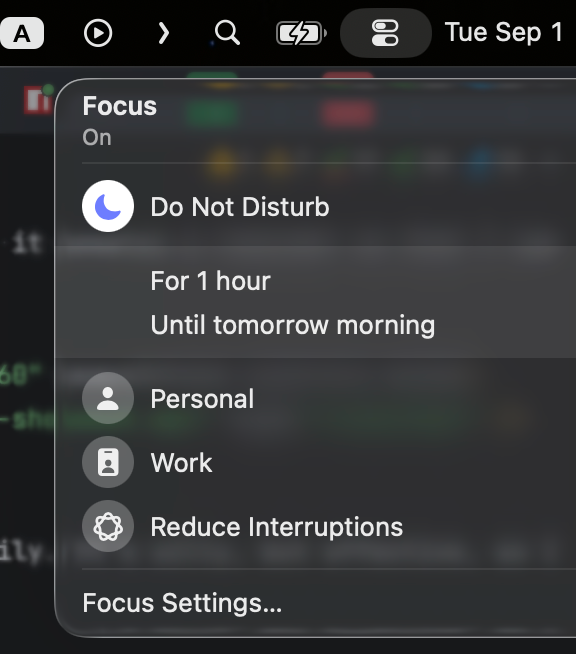
Too many notifications? Less is more. Mute them. I usually block permissions to trivial app notifications, on my laptop I even turn off WhatsApp/Telegram notifications. I try to avoid things that break my focus.
#Extended clipboard
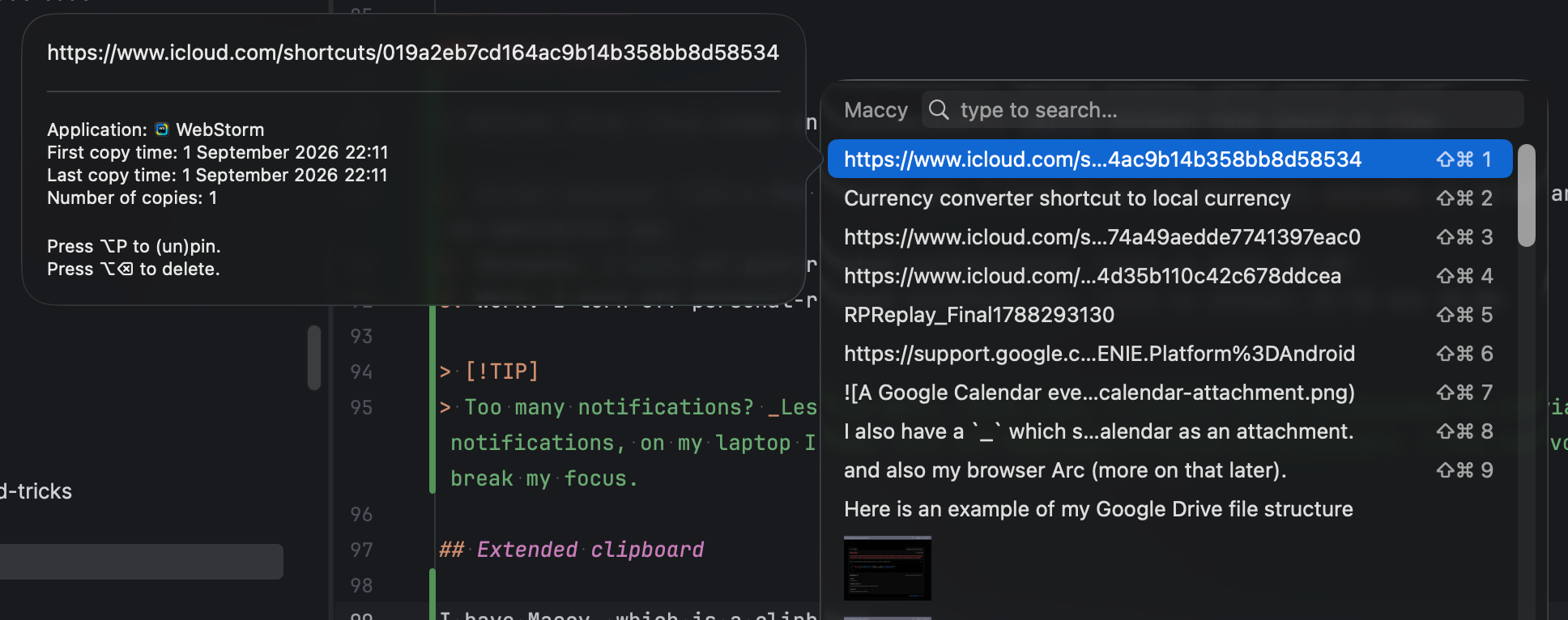
I have MaccyOpen in a new tab, which is a clipboard manager that keeps a history of copied text and images. Super useful. I trigger it with Ctrl+Shift+V.
#Date-first names (2026-10-20_name)
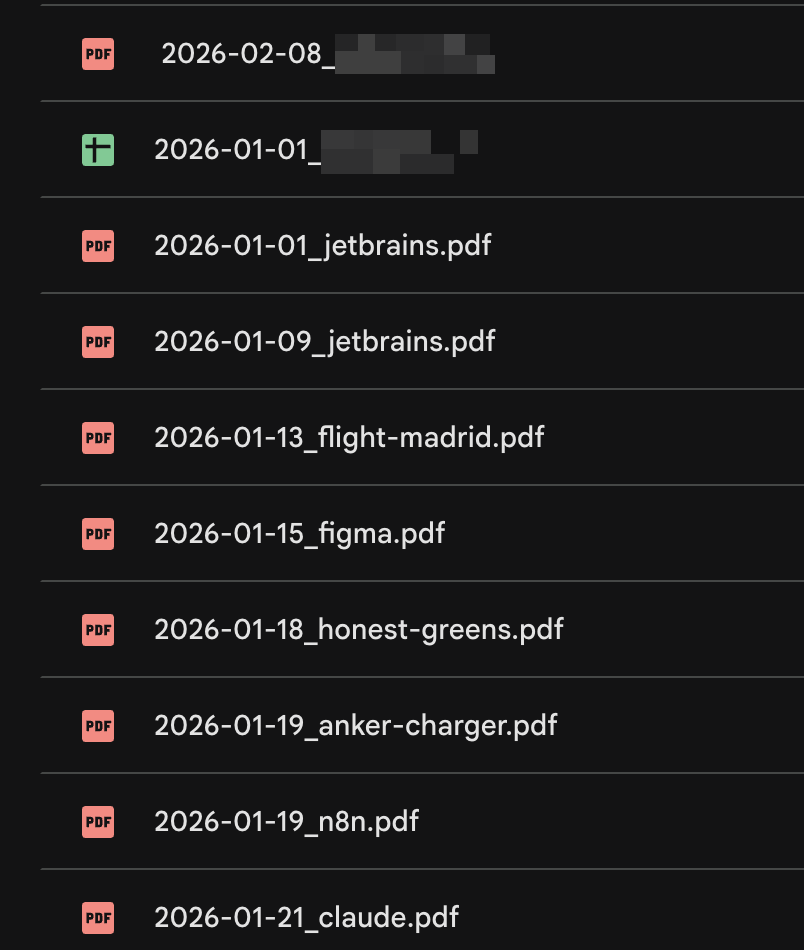
Whenever I need to name an invoice or an editing project, I use this format, which means that when I sort by name, everything is automatically listed in order. Quite nice and simple. It helps when I need to send my administrator the month's invoices.
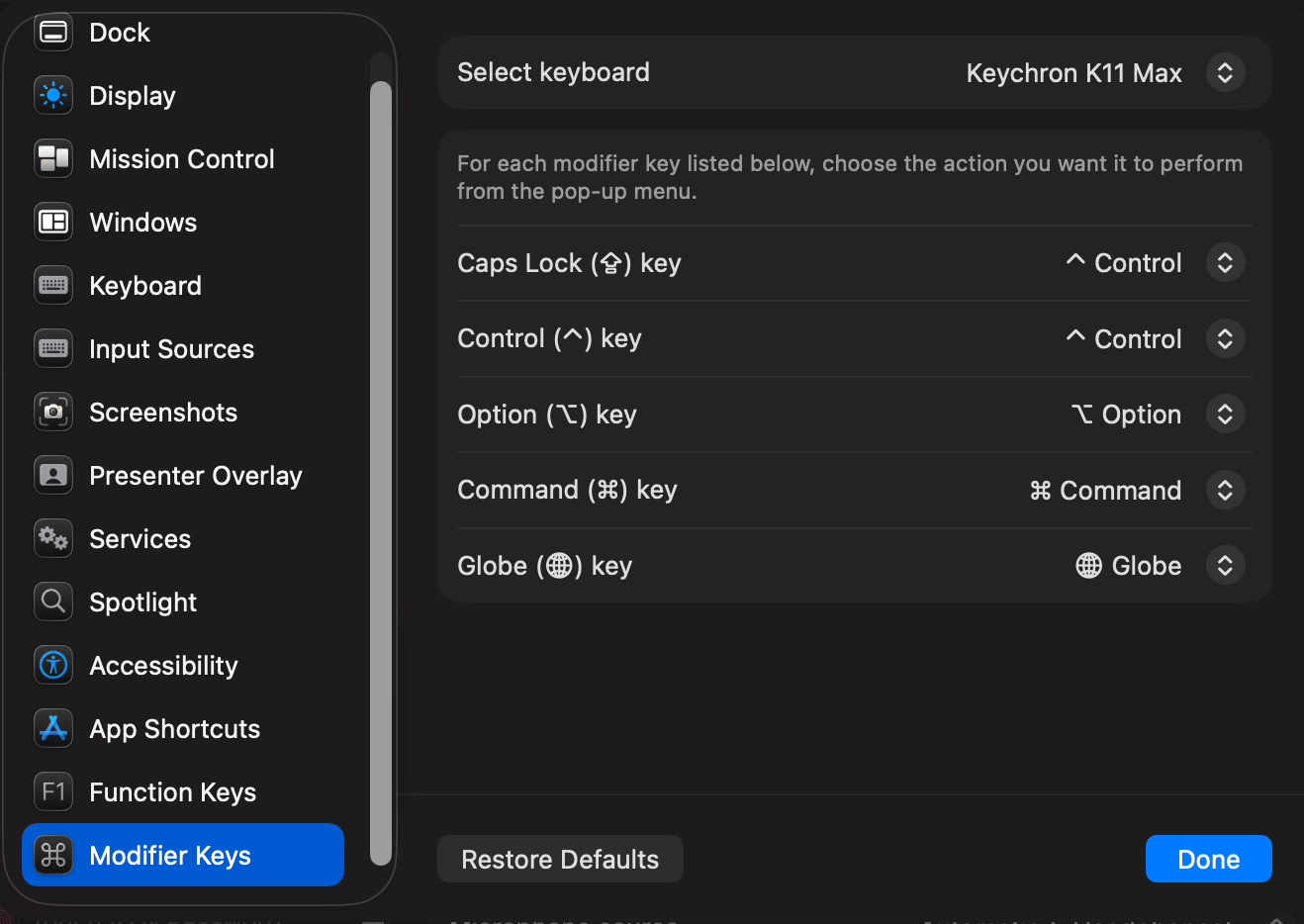
#Replacing Caps Lock with Ctrl
I remapped the Caps Lock key to Ctrl in my configuration because, to be honest, it's not really a useful key unless you are writing SQL or sending angry emails.
NOTHING SCREAMS MORE ANGRY THAN SENDING A MESSAGE HOLDING SHIFT YOURSELF FOR EVERY WORD. IF YOU ARE ANGRY AT LEAST TRY HARDER.
The benefit is that shortcuts that use the Ctrl key become way easier. Ergonomics are important to me. And if I ever need actual caps, I use my IDE's shortcut for it (I've written about WebStorm shortcuts before).
#Dotfiles
Speaking of configuration, everything I configure on my Mac is done via code, so that whenever I change my machine, I run a script that installs all my favorite apps, configures shortcuts, heck, even mouse speed.
I do that using dotfilesOpen in a new tab and a handy library I created with a few ex-coworkers called dotplugOpen in a new tab.
For example, here is a list of all the apps and utilities that I have
brew "asciinema"
brew "bat"
brew "eza"
brew "ffmpeg"
brew "fzf"
brew "gemini-cli"
brew "gh"
brew "gifsicle"
brew "gifski"
brew "git-delta"
brew "glab"
brew "gnu-getopt"
brew "herdr"
brew "imagemagick"
brew "jpegoptim"
brew "mas"
brew "micro"
brew "mise"
brew "oxipng"
brew "pngquant"
brew "ripgrep"
brew "vercel-cli"
brew "webp"
brew "yt-dlp"
brew "zoxide"
brew "zsh-autosuggestions"
brew "zsh-syntax-highlighting"

cask "1password"
cask "appcleaner"
cask "arc"
cask "bluesnooze"
cask "brave-browser"
cask "chatgpt"
cask "claude"
cask "claude-code@latest"
cask "docker-desktop"
cask "figma"
cask "firefox"
cask "flux-app"
cask "ghostty"
cask "google-chrome"
cask "google-drive"
cask "hiddenbar"
cask "jetbrains-toolbox"
cask "maccy"
cask "nordvpn"
cask "notion"
cask "numi"
cask "orbstack"
cask "rectangle"
cask "rode-central"
cask "scroll-reverser"
cask "shottr"
cask "slack"
cask "spotify"
cask "vlc"
cask "warp"
cask "whatsapp"
And here is how I configure macOS itself, via defaults
# System Preferences > Keyboard >
defaults write -g InitialKeyRepeat -int 12

# System Preferences > Keyboard >
defaults write -g KeyRepeat -int 2

# Auto hide the dock
defaults write com.apple.dock autohide -bool true

# Show all hidden files
defaults write com.apple.Finder AppleShowAllFiles -bool true

# Remove shadows from screenshots
defaults write com.apple.screencapture disable-shadow -bool true

# Disable feedback when changing volume
defaults write NSGlobalDomain com.apple.sound.beep.feedback -bool false

# New window points to home
defaults write com.apple.finder NewWindowTarget -string "PfHm"

# Use list view
defaults write com.apple.finder FXPreferredViewStyle -string "Nlsv"

# Disable the sound effects on boot (needs sudo only the first time)
if ! nvram SystemAudioVolume 2>/dev/null | grep -q '%80'; then
  sudo nvram SystemAudioVolume=%80
fi

# Finder: allow quitting via ⌘ + Q; doing so will also hide desktop icons
defaults write com.apple.finder QuitMenuItem -bool true

# Finder: show all filename extensions
defaults write NSGlobalDomain AppleShowAllExtensions -bool true

# When performing a search, search the current folder by default
defaults write com.apple.finder FXDefaultSearchScope -string "SCcf"

# Disable the warning when changing a file extension
defaults write com.apple.finder FXEnableExtensionChangeWarning -bool false

# Avoid creating .DS_Store files on network volumes
defaults write com.apple.desktopservices DSDontWriteNetworkStores -bool true

# Show the ~/Library folder
chflags nohidden ~/Library

# Bottom right screen corner opens Desktop
defaults write com.apple.dock wvous-br-corner -int 4
defaults write com.apple.dock wvous-br-modifier -int 0

# Change the default screenshots folder
defaults write com.apple.screencapture location ~/Desktop

# Trackpad: enable tap to click for this user and for the login screen
defaults write com.apple.driver.AppleBluetoothMultitouch.trackpad Clicking -bool true
defaults -currentHost write NSGlobalDomain com.apple.mouse.tapBehavior -int 1
defaults write NSGlobalDomain com.apple.mouse.tapBehavior -int 1

# Use fn functions as default
defaults write .GlobalPreferences.plist com.apple.keyboard.fnState -int 1

# Disable user interface sound like screenshots
defaults write com.apple.systemsound "com.apple.sound.uiaudio.enabled" -int 0

# Prevent apps from staying in Dock
defaults write com.apple.dock show-recents -bool no
defaults write com.apple.dock persistent-apps -array

# Disable automatic modifications of entered text
defaults write -g NSAutomaticCapitalizationEnabled -bool false
defaults write -g NSAutomaticDashSubstitutionEnabled -bool false
defaults write -g NSAutomaticPeriodSubstitutionEnabled -bool false
defaults write -g NSAutomaticQuoteSubstitutionEnabled -bool false
defaults write -g NSAutomaticSpellingCorrectionEnabled -bool false

# Enable full keyboard access for all controls
# (e.g. enable Tab in modal dialogs)
defaults write NSGlobalDomain AppleKeyboardUIMode -int 3

# Enable tap to click for the current user and the login screen. (Don't have to press down on the trackpad -- just tap it.)
defaults write com.apple.driver.AppleBluetoothMultitouch.trackpad Clicking -bool true
defaults write com.apple.AppleMultitouchTrackpad Clicking -int 1
defaults -currentHost write -g com.apple.mouse.tapBehavior -int 1
defaults write -g com.apple.mouse.tapBehavior -int 1

# Always show scrollbars
defaults write NSGlobalDomain AppleShowScrollBars -string "Always"

# Avoid period substitution
defaults write NSGlobalDomain NSAutomaticPeriodSubstitutionEnabled -bool false

# Disable smart quotes
defaults write NSGlobalDomain NSAutomaticQuoteSubstitutionEnabled -bool false

# Disable auto-correct
defaults write NSGlobalDomain NSAutomaticSpellingCorrectionEnabled -bool false

# Disable press-and-hold for keys in favor of key repeat
defaults write NSGlobalDomain ApplePressAndHoldEnabled -bool false
The cool thing about it is that for every project I have a custom plugin with the specific configuration and apps for that project. It's in version control and I can tell my AI agent to tweak it for me. I can even share it with others.
#Arc
I use the Arc BrowserOpen in a new tab. What I mainly like about it are the vertical tabs, the way it autocloses all the tabs every 24 hours, and the way I can show or hide the sidebar. There are more features, but to me those ones really hit the nail on the head.
If something is worth keeping I store it as a bookmark using the P.A.R.A method or I move it to my second brain (more about it later).
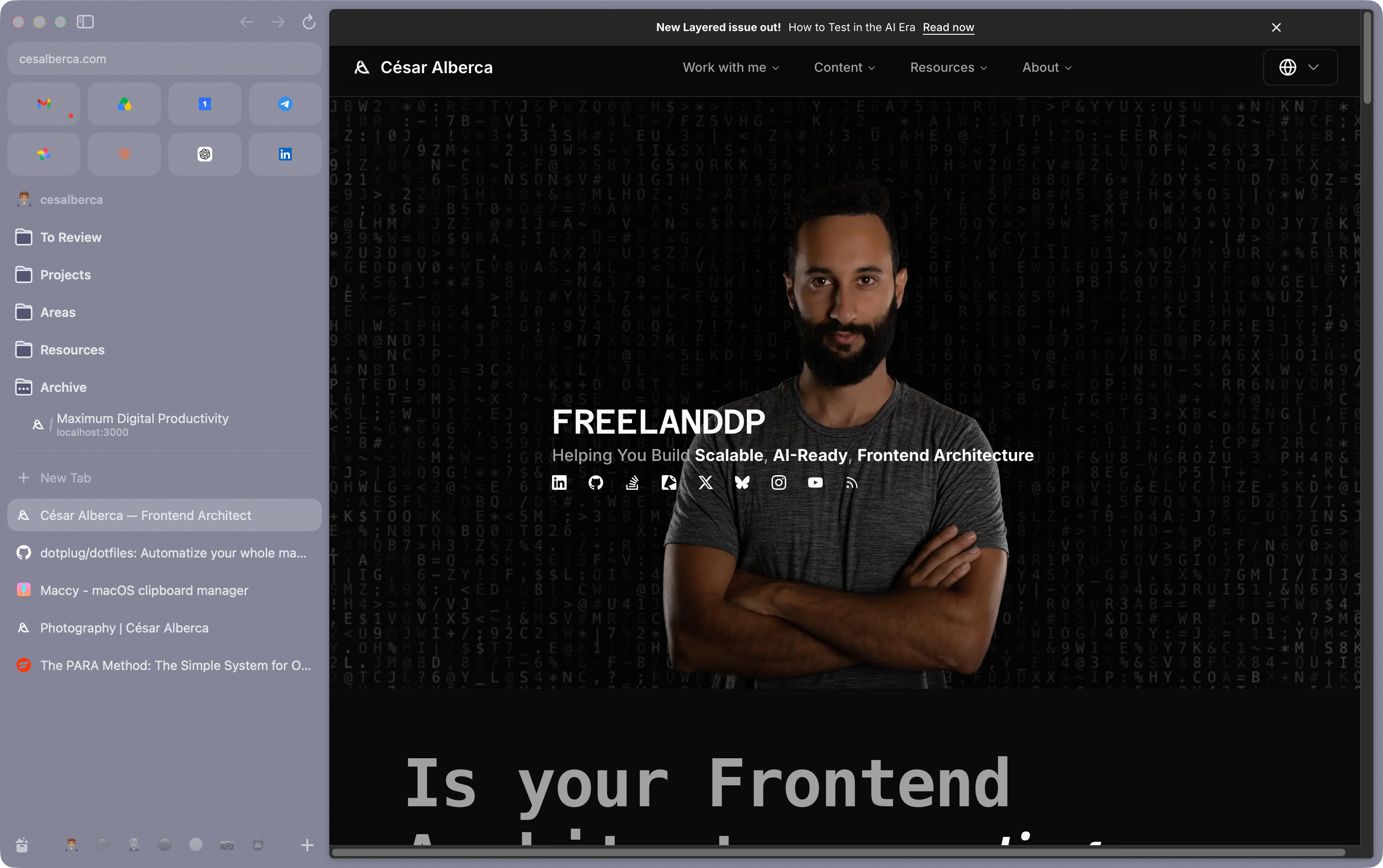
Sadly, Arc is not under development anymore: it is being replaced by DiaOpen in a new tab. I haven't made the switch yet. Let's see.
#Delegate to calendar
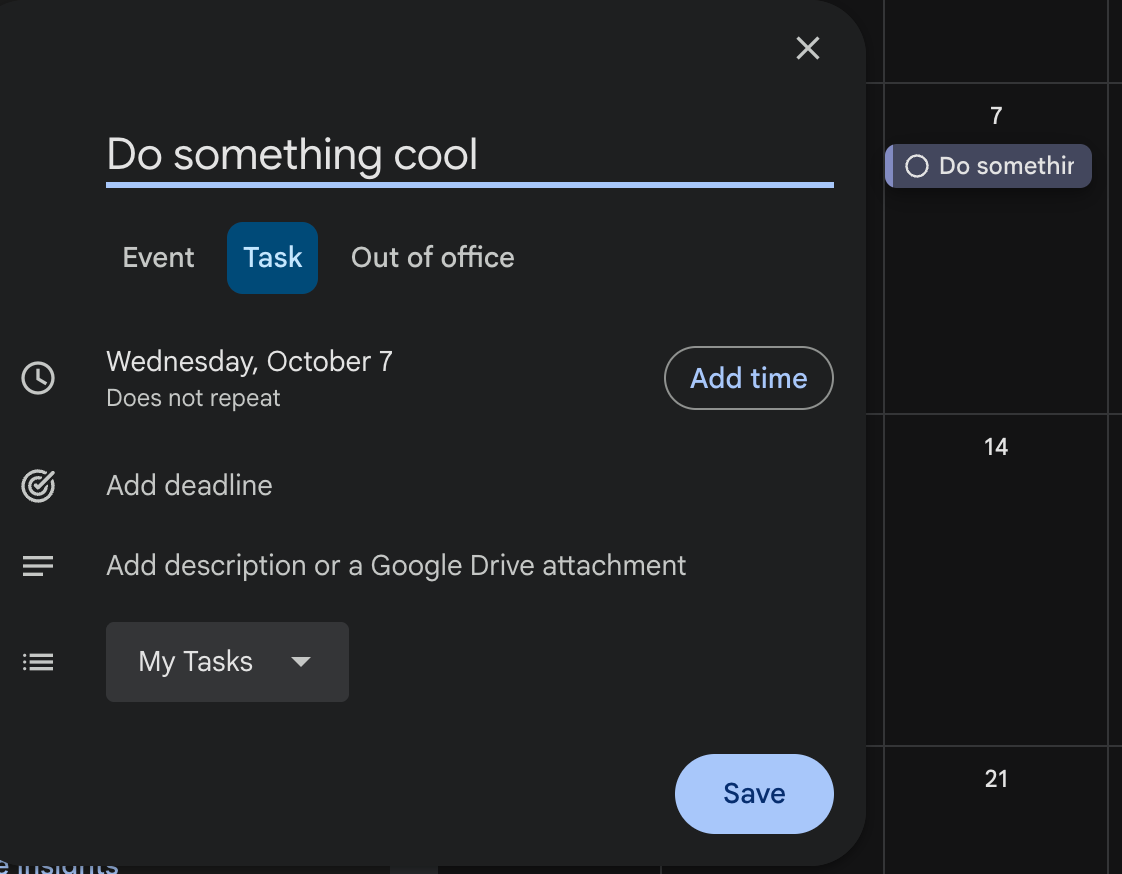
I use the bullet journal method to organise my days. For that I use pen and paper. Yes, weird, I know. However, when something is time-sensitive I use Google TasksOpen in a new tab directly on the calendar so that I get notified.
#Screenshots
A good screenshot app is essential, for this I rely on ShottrOpen in a new tab.
I trigger it with Cmd+Shift+4.
I like that I can add comments and pointy arrows. I find myself taking a ton of screenshots and adding notes to them to send to my clients or agents.
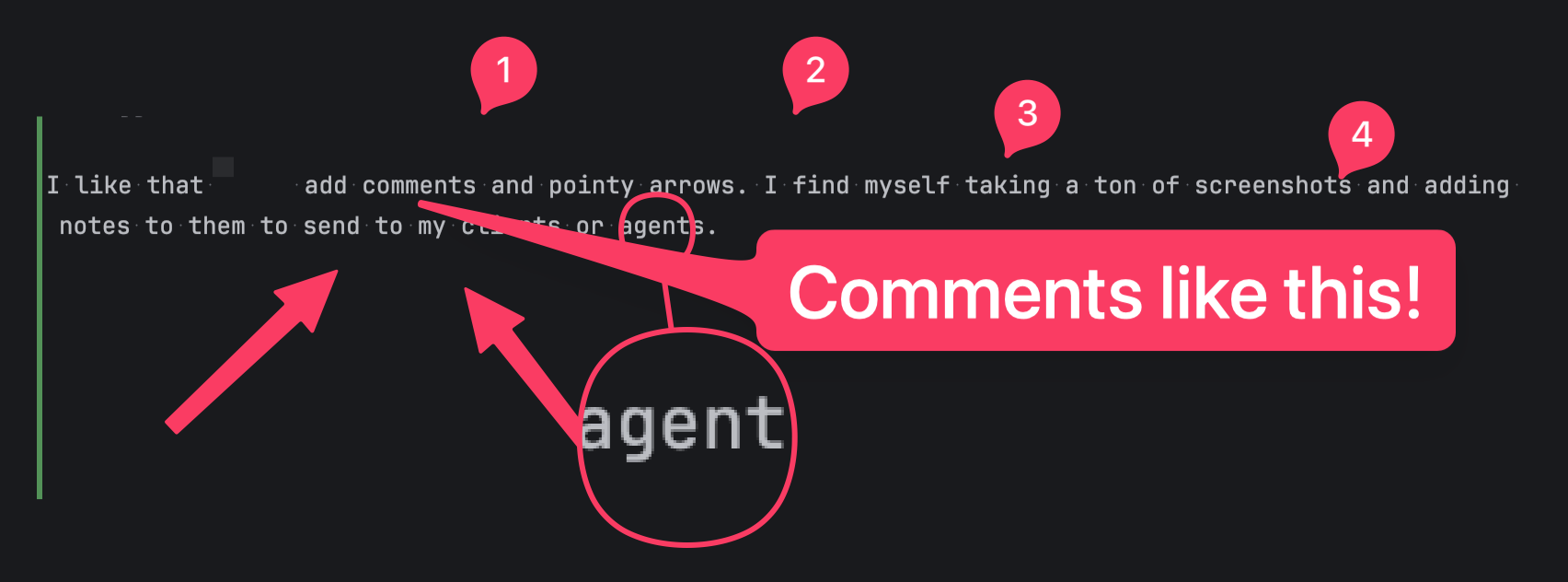
The only thing I wish it did is record videos or GIFs. For recording, I use QuickTimeOpen in a new tab and then turn it into GIFs with GifskiOpen in a new tab.
#Keyboard Shortcuts
I invested a lot of time getting to know the shortcuts for every major program that I use. The browser, my IDE, the terminal, the operating system and so on. These are my favorites:
Cmd+Tab: switch between open apps.Cmd+CandCmd+V: copy and paste. The classics.Cmd+Z: undo anything, almost anywhere.Cmd+Shift+Z: redo what you just undid.Cmd+Left/Right Arrow: jump to the beginning or end of the line.Option+Left/Right Arrow: jump word by word.Option+Delete: delete the whole previous word.Cmd+A: select everything.Shift+Option+Left/Right Arrow: select word by word.
And many, many more.
Not on a Mac? Use the toggle to see the Windows equivalents in this list.
Do your fingers already know them? Prove it:
Try them on real text
This is a real text box: every shortcut actually does its thing. Go in order and watch the text react.
Cmd+ASelect all the text (everything highlights at once)Option+Left ArrowClick at the end, then jump back word by wordShift+Option+Left ArrowHold Shift too: select the previous wordOption+DeleteNow delete itCmd+Left ArrowJump to the start of the line
#Bullet Journaling
I've talked about it extensively in a separate blogpost. Read about how I do bullet journaling. So I'll keep it brief here. It gives me peace and direction. It also helps me integrate knowledge better and there's something so satisfying about it that it can't be put into words.
I could have used any digital tool or Notion, but having something analog feels like the right fit for me.
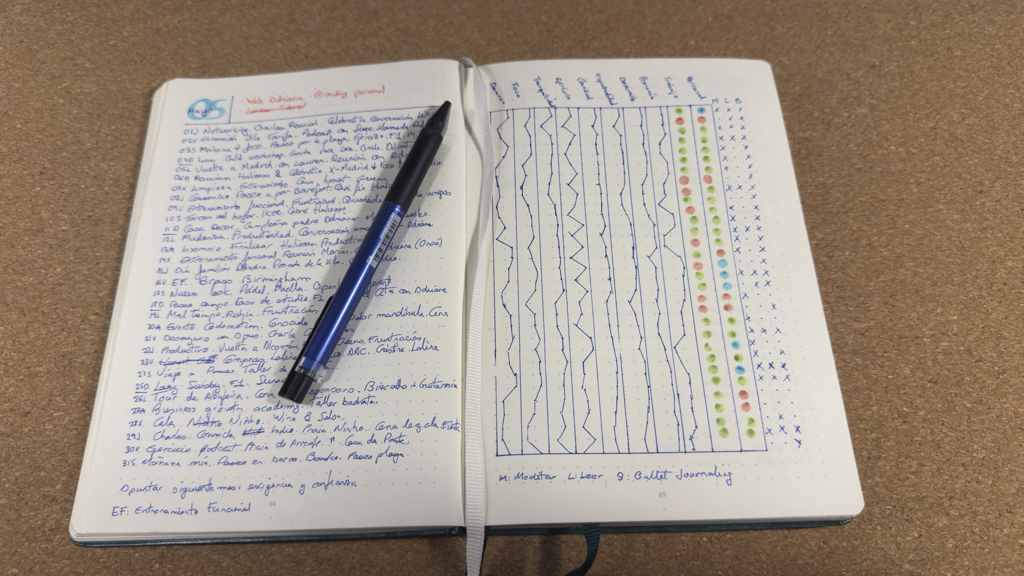
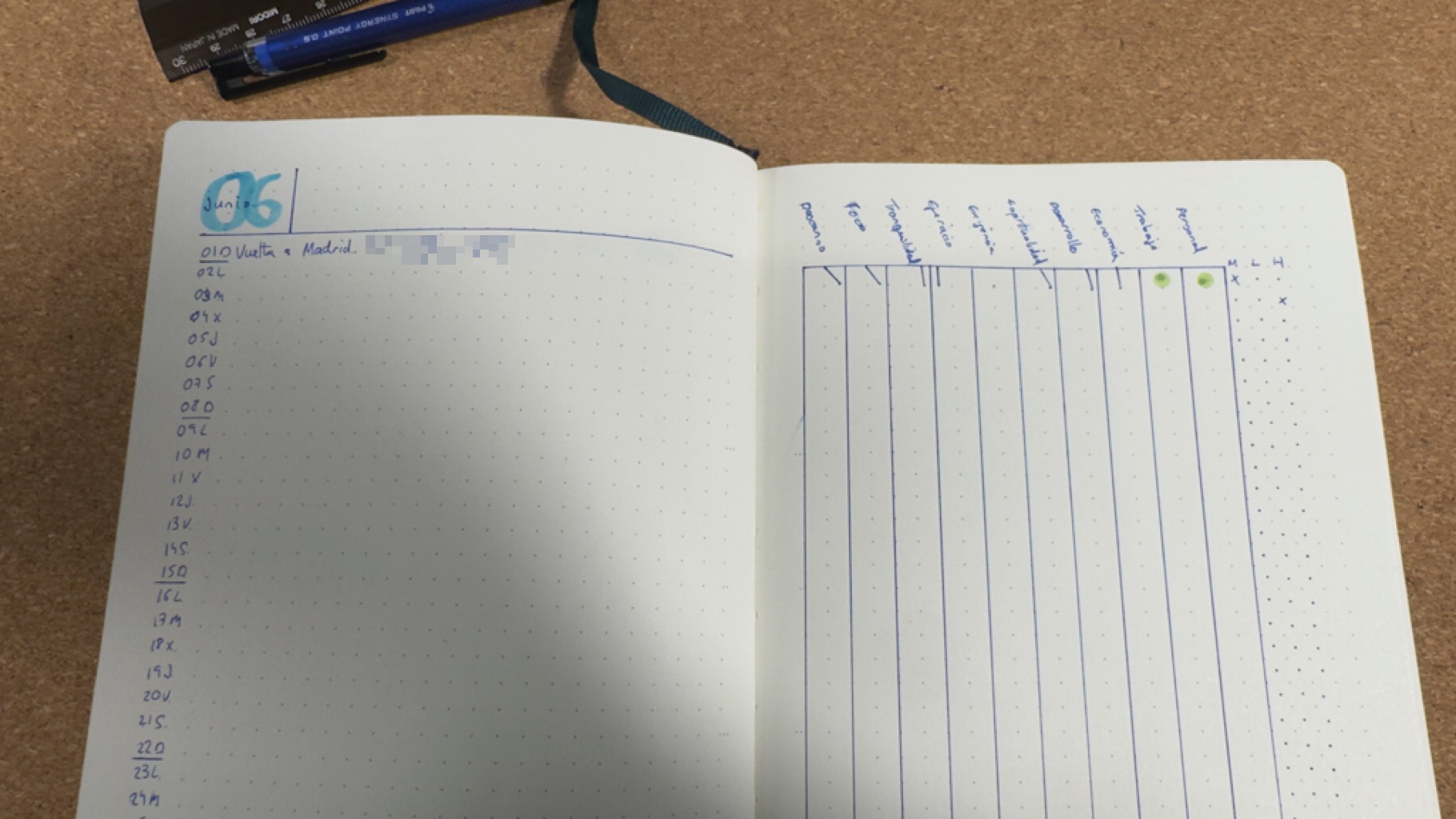
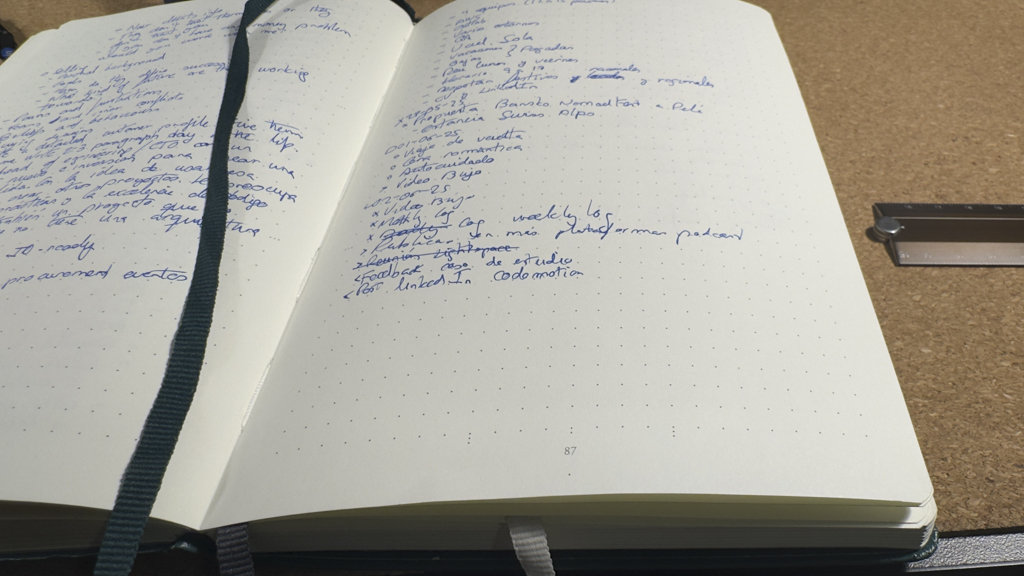
If I need to record information that I really want to get back to or easily search, I use my Second Brain.
#Second Brain
Every piece of knowledge worth keeping, I store as treasure in Notion. I make sure only the most distilled and easy to consume information lands here. Everything new needs to fight for its spot.
I learned this from Tiago Forte in his book Building a Second BrainOpen in a new tab.
Of course, it follows the P.A.R.A method we described before.
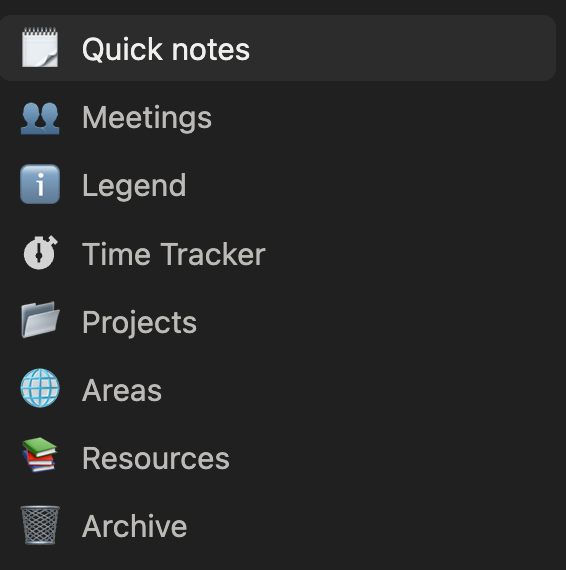
Here are some examples of content that I store:
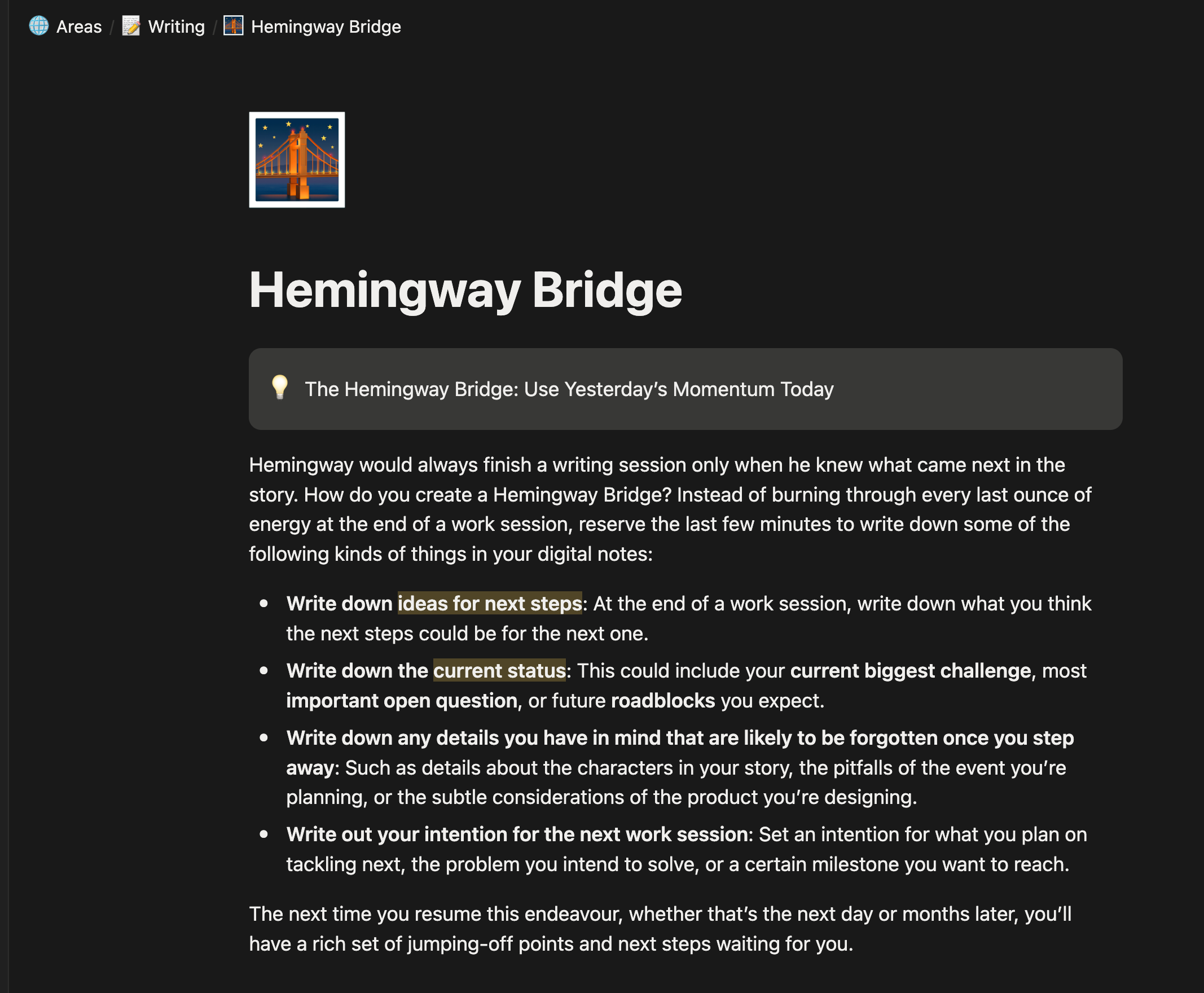
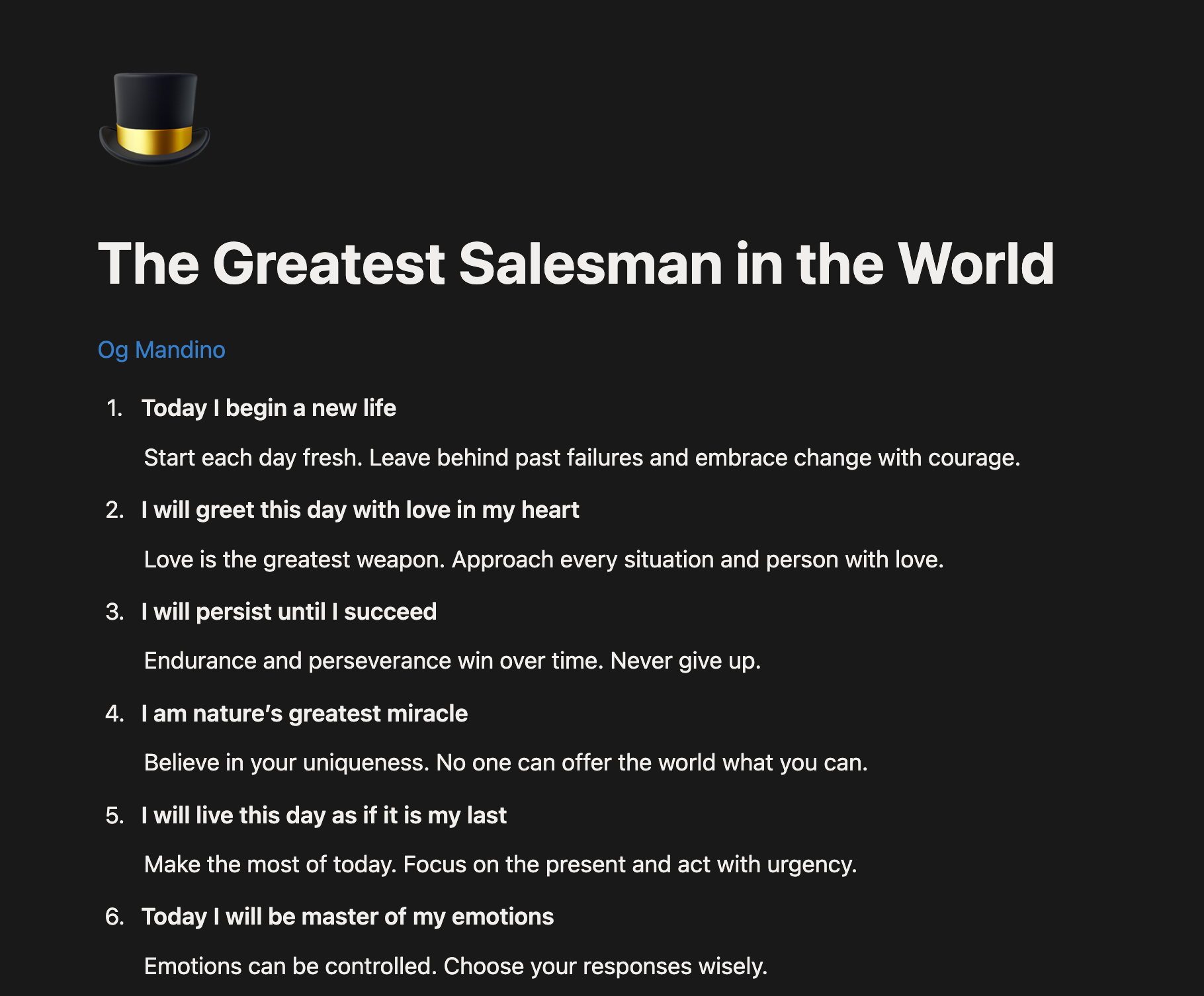
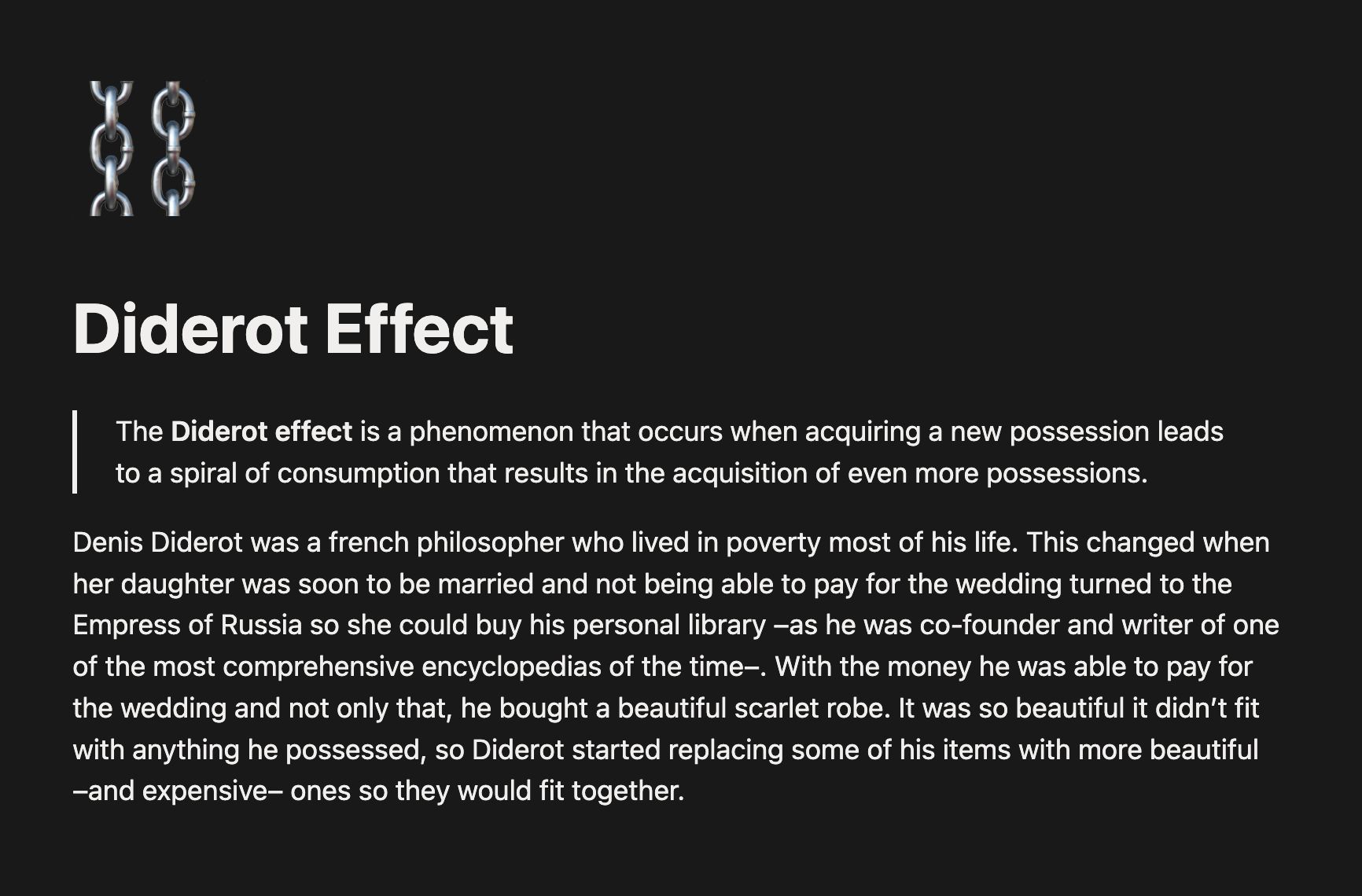
The best time to plant a tree was 20 years ago. The second best time is now. Having a second brain in this AI era allows me to ask questions in a really curated and fine-tuned context. That to me is highly valuable, perhaps it can be for you too.
#Atomic Habits
I follow to the best of my ability the premises from the Atomic Habits BookOpen in a new tab:
- Cue: Make it obvious. Put the trigger where you can't miss it. The book on your pillow, the running shoes by the door.
- Craving: Make it attractive. Pair the habit with something you enjoy. I meditate right after my morning matcha.
- Response: Make it easy. Shrink it until starting is trivial. Two minutes of journaling still counts.
- Reward: Make it satisfying. Give yourself an immediate win. Ticking the habit off in my bullet journal is mine.
To avoid bad habits, just apply the contrary:
- Cue: Make it invisible. Remove the trigger. Delete the app from your home screen, or the whole account, like I do with email.
- Craving: Make it unattractive. Reframe it. That doomscroll is not a break, it's someone else spending your attention.
- Response: Make it difficult. Add friction. Log out, block the notification, leave the phone in another room.
- Reward: Make it unsatisfying. Make the cost visible. Track the slip, or tell someone who will ask you about it.
#Archive
And, simple as it sounds, the thing that ties everything together is the archive feature. It's a silly thing, but it has provided me tremendous value over the years. Whenever I receive an email, after I reply or I decide to ignore it, I archive it.
Out of sight, out of mind
If you use Gmail like I do you should enable keyboard shortcutsOpen in a new tab, so that you can use e to archive selected emails. I select emails using arrow keys, then x to select and e to archive.
This way, I never forget to reply to an email. Ever.
I do the same for WhatsApp and Telegram. Every conversation I reply to or handle, I archive.
On WhatsApp I suggest you turn off the option to keep archived chats archived, so that when you receive a message in an archived chat it goes back to the inbox.
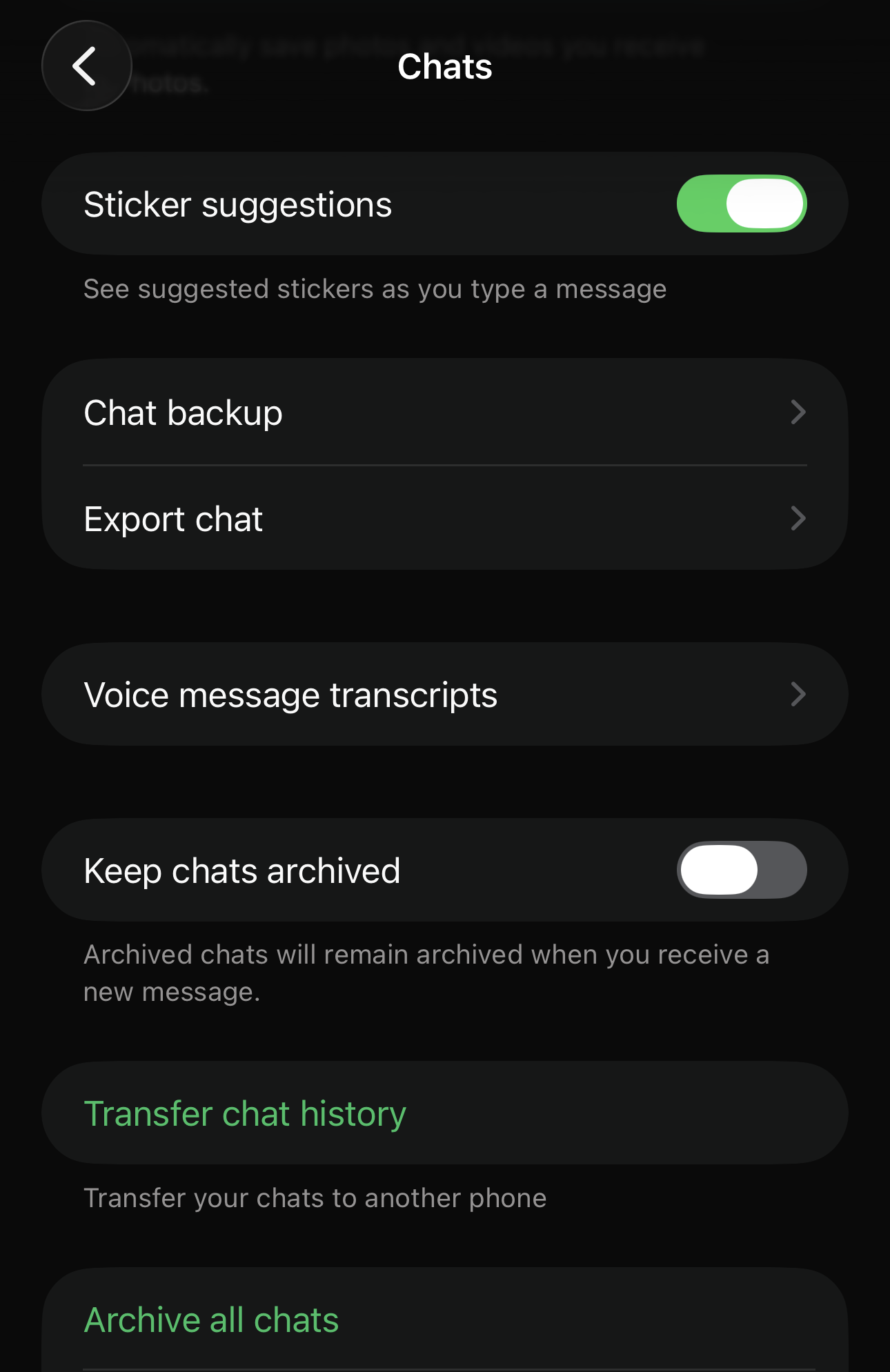
If I can only teach you one thing in this post, it is this: archive, archive, and archive.
#Conclusion
I hope this blogpost has been useful for you. There's a lot of knowledge accumulated over the years infused here that can save you tons of time. If you think it can be useful for somebody else, feel free to share it.
I plan to update this blogpost whenever I change something about my setup. The best way to get notified of new content is through my newsletter or subscribing to my RSS feed.
Until next time!
#References
- The P.A.R.A MethodOpen in a new tab by Tiago Forte
- Building a Second BrainOpen in a new tab by Tiago Forte
- Atomic HabitsOpen in a new tab by James Clear
- The Bullet Journal Method, my take on analog journaling
- My Apple Shortcuts: Timezone converterOpen in a new tab, Currency to localOpen in a new tab, Currency to foreignOpen in a new tab and LockOpen in a new tab
- Tools: MaccyOpen in a new tab, ShottrOpen in a new tab, GifskiOpen in a new tab, ArcOpen in a new tab, DiaOpen in a new tab
- dotfilesOpen in a new tab and dotplugOpen in a new tab
- Gmail keyboard shortcutsOpen in a new tab and Gmail Manage SubscriptionsOpen in a new tab