The JetBrains license giveawayOpen in a new tab has ended. Thank you for participating!
I've been using WebStormOpen in a new tab and other JetBrains IDEs since 2016. When I was coding in Java during my Professional Training, my classmates and teacher were using EclipseOpen in a new tab. However, after investigating for a bit, I decided to go with JetBrainsOpen in a new tab and its powerful IntelliJ IDEAOpen in a new tab.
After finishing my studies, I focused on Web Development. I started coding with Sublime TextOpen in a new tab and then switched to AtomOpen in a new tab and shortly after to VS CodeOpen in a new tab once it was out.
When I was hired at Autentia, and after seeing everyone there used JetBrains (well, almost), I decided to give WebstormOpen in a new tab a try. It was challenging, and I even momentarily switched back to VSCode for a couple of months, but after an amazing workshop on Refactoring with JetBrains IDEs from Carlos BléOpen in a new tab I felt like I was really missing out.
“”I was switching from a Text Editor to an IDE
And since then, I never looked back. I take great care not to identify with the tools I use, since I want to use the best tool for the job. And for me, if you are doing Software Development, JetBrains is the best tool. Let me show you why.
Since this blogpost contains a ton of shortcuts, you may want to switch between Windows and macOS to get the specific shortcuts for your operating system.
It will switch the shortcuts like this one: Option + A
Let's start, shall we?
#Focus
To me, focus is one of my greatest assets, and when I code, I want to favor my work environment as much as I can to facilitate going into the . To do that, I usually code in the Zen ModeOpen in a new tab, which is one of its presentation modes.
If you are giving a presentation and showing code, use the Presentation Mode. You can toggle it with Ctrl + `
 With the presentation mode you'll see the IDE with a bigger font and fewer elements so your audience can focus on the code.
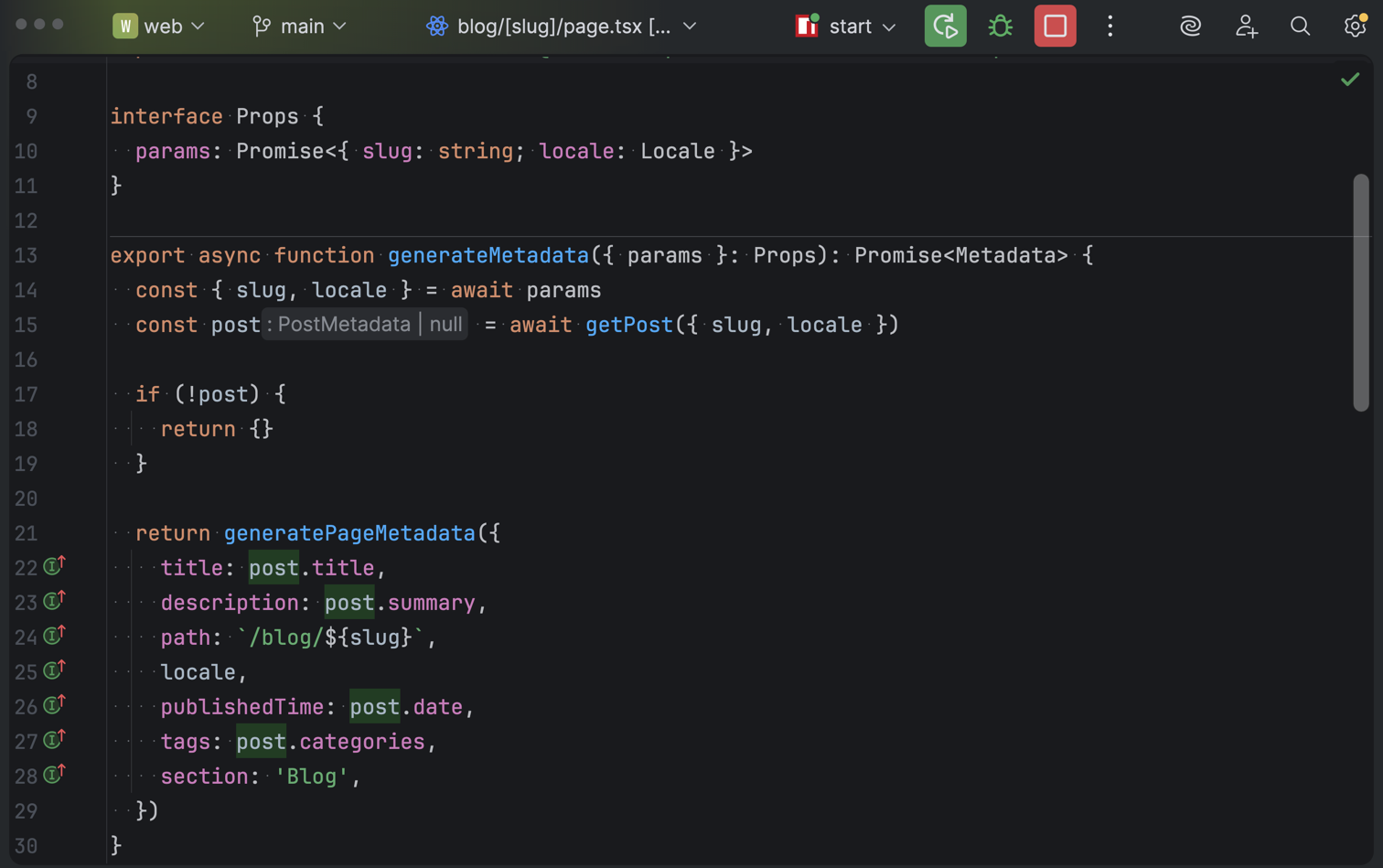
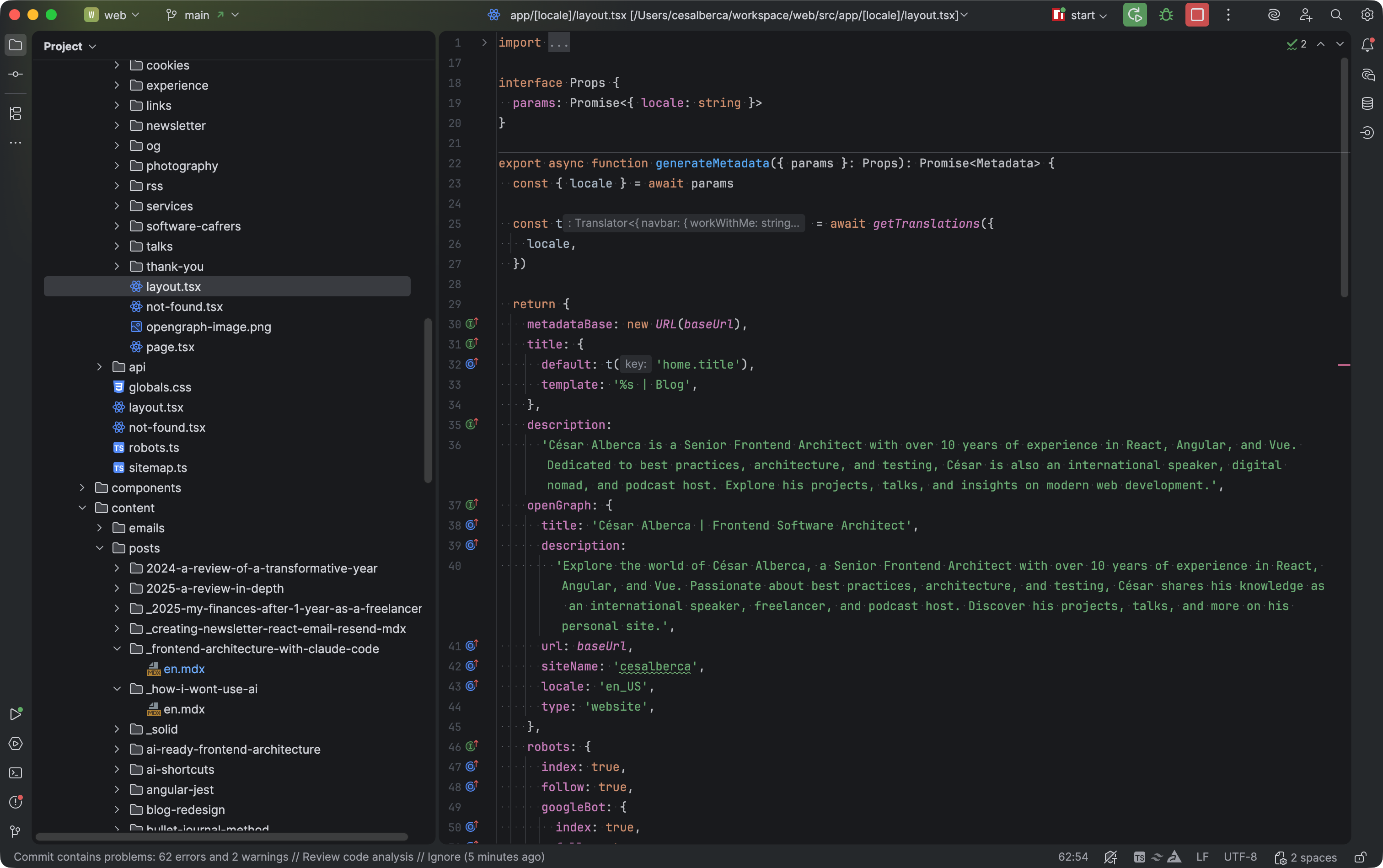
Zen Mode hides all toolbars, icons, and tabs. This removes visual clutter and forces you to learn keyboard shortcuts because there are not too many things to click on.
Here is the before:
And here is the after:
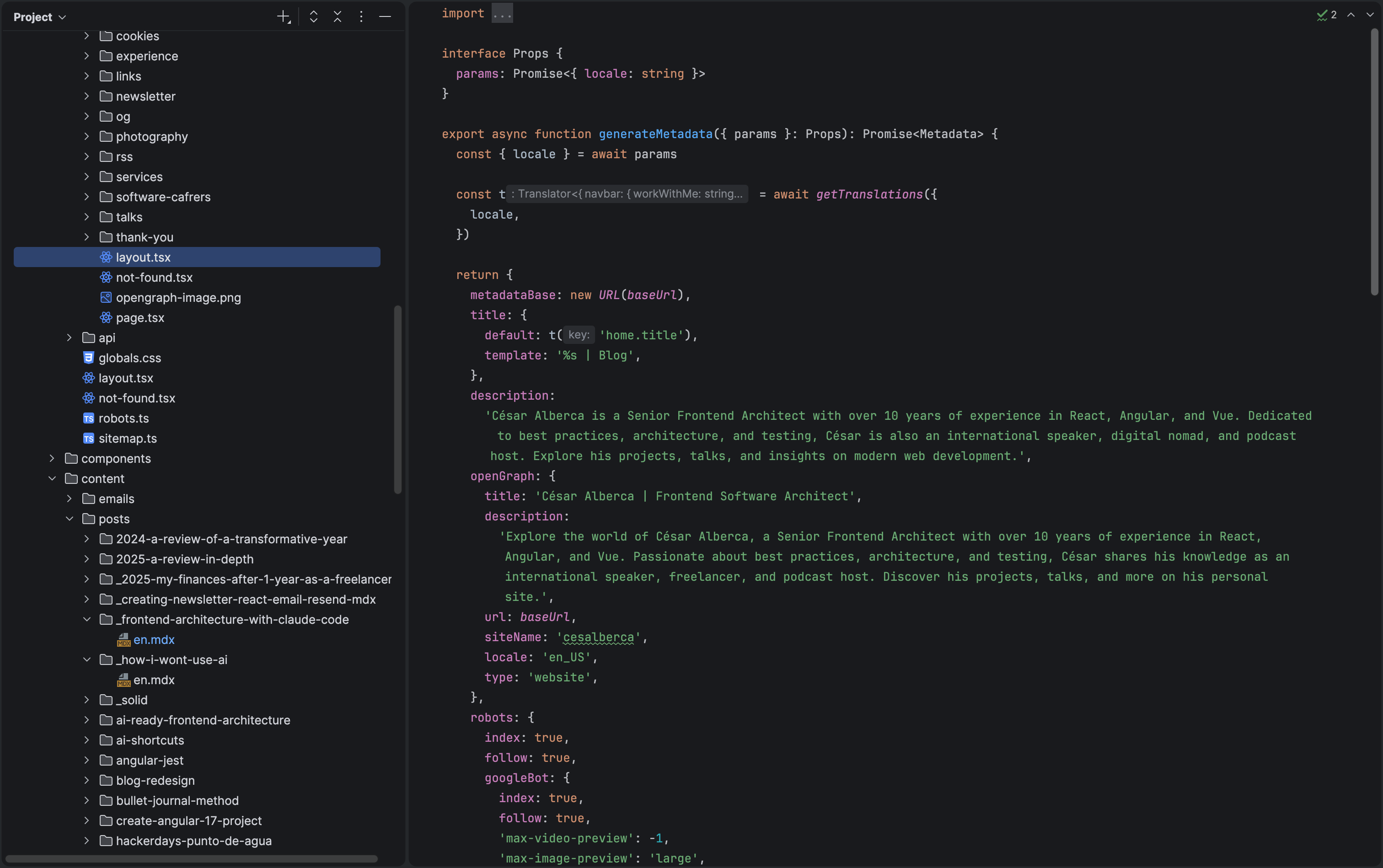
Now you can focus entirely on the code.
#No Tabs
I entirely disabled the tabs, and you should too!
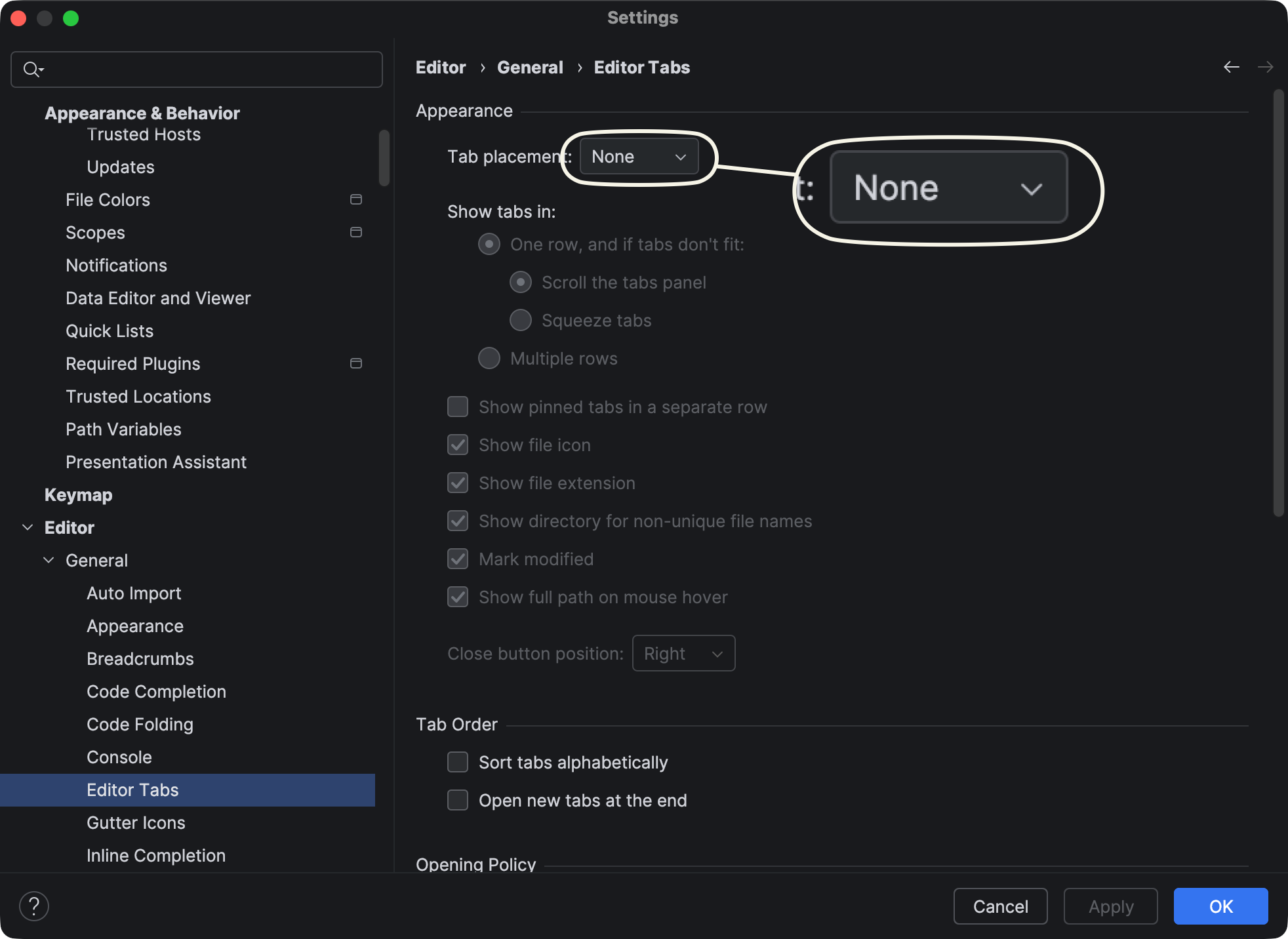
I've found that disabling tabs reduces task overloading; besides, you can use Cmd + E to open recent files anyway, which is my preferred method of navigation.
When starting a new task or when switching coding contexts, I delete all recent files. To do that, I open Recent Files with Cmd + E, then select all (for a few) with Cmd + A and hit Delete. This doesn't actually delete the files from the system, just from the Recent Files panel.
#Tool Navigation
One of the things I appreciate most about an IDE is that it has all the tools I need integrated like GitOpen in a new tab or AI ChatOpen in a new tab. And I can toggle and open them.
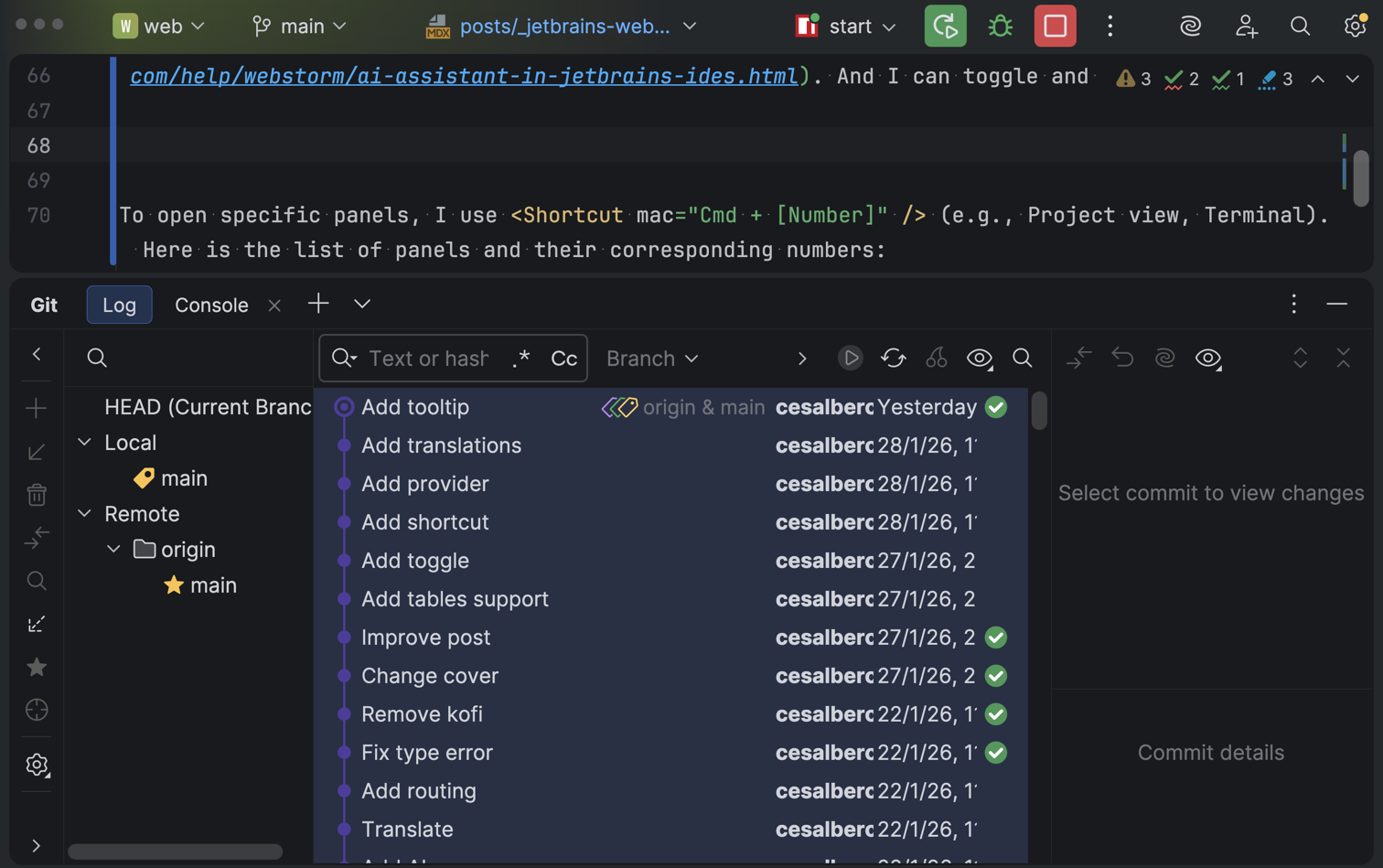
To open specific panels, I use Cmd + [Number]. Here is the list of panels and their corresponding numbers that I use:
| Window | Command |
|---|---|
| Commit | Cmd + 0 |
| Project | Cmd + 1 |
| Bookmarks | Cmd + 2 |
| Find | Cmd + 3 |
| Run | Cmd + 4 |
| Debug | Cmd + 5 |
| Problems | Cmd + 6 |
| AI Chat | Cmd + 7 |
| Services | Cmd + 8 |
| Git | Cmd + 9 |
I don't use that much the Structure ToolOpen in a new tab, which by default is on the Cmd + 7, so I swapped it with the AI Chat.
A useful feature that should be noted is that if you want to hide all panels to return to code, you can do so by using Shift + Esc or Cmd + Shift + F12 to hide all side panels.
Panels sometimes need to be resized, and of course the IDE allows this resizing to be performed without a mouse using Cmd + Option + Left/Right.
#Split Screens
Split Screen is a feature that I use almost every day, it allows me to compare code, do , or develop .
I created custom shortcuts Ctrl + Cmd + V/H for Vertical or Horizontal splits. I also added Option + Tab to cycle between different splits.
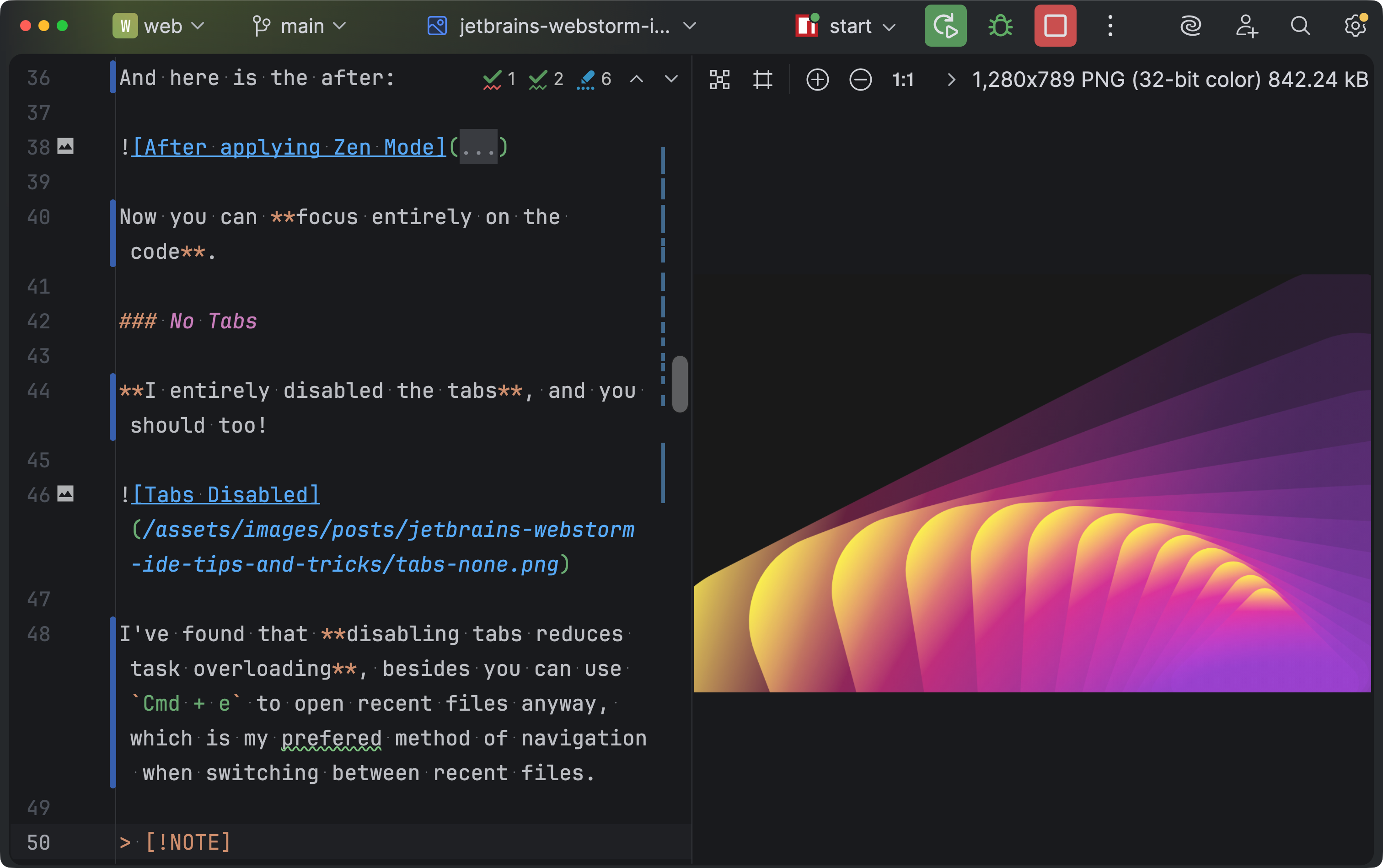
You can create the Fibonacci Spiral using this shortcut. Don't believe me? Try!
To use arrow keys to navigate in the tree pane with ease, I enable Always Select Opened File in the Project view settings so the file tree always reflects your active editor window.
This is quite handy when you open a file via Cmd + E because when you then focus the Project Pane with Cmd + 1 you can open adjacent files using the up and down keys.
Here is a video of what I mean:
Now that we learned about using the Tools and Windows, let's move on to Actions.
#Essential Actions
Search Everywhere Shift + Shift is the only shortcut you really need to know in the beginning since you can use it to find other shortcuts, classes, files, and .
However, you might want to be more explicit with what you are searching for, so you can use different search methods:
- Find Action: Use
Cmd + Shift + A - Find File: Use
Cmd + Shift + O - Find Class: Use
Cmd + O
Talking about essential actions, you should definitely remap caps lock to control.
One of my mentors once suggested changing the Caps Lock key to act as Control. I thought it was crazy, but no, it was one of the most amazing recommendations I've ever received! This change made using shortcuts in general more ergonomic.
#Running tasks
One of my absolute favorite features is the ability to run npm scripts through shortcuts. This is done through the Run ConfigurationsOpen in a new tab. You can see this, for example, in the package.json:
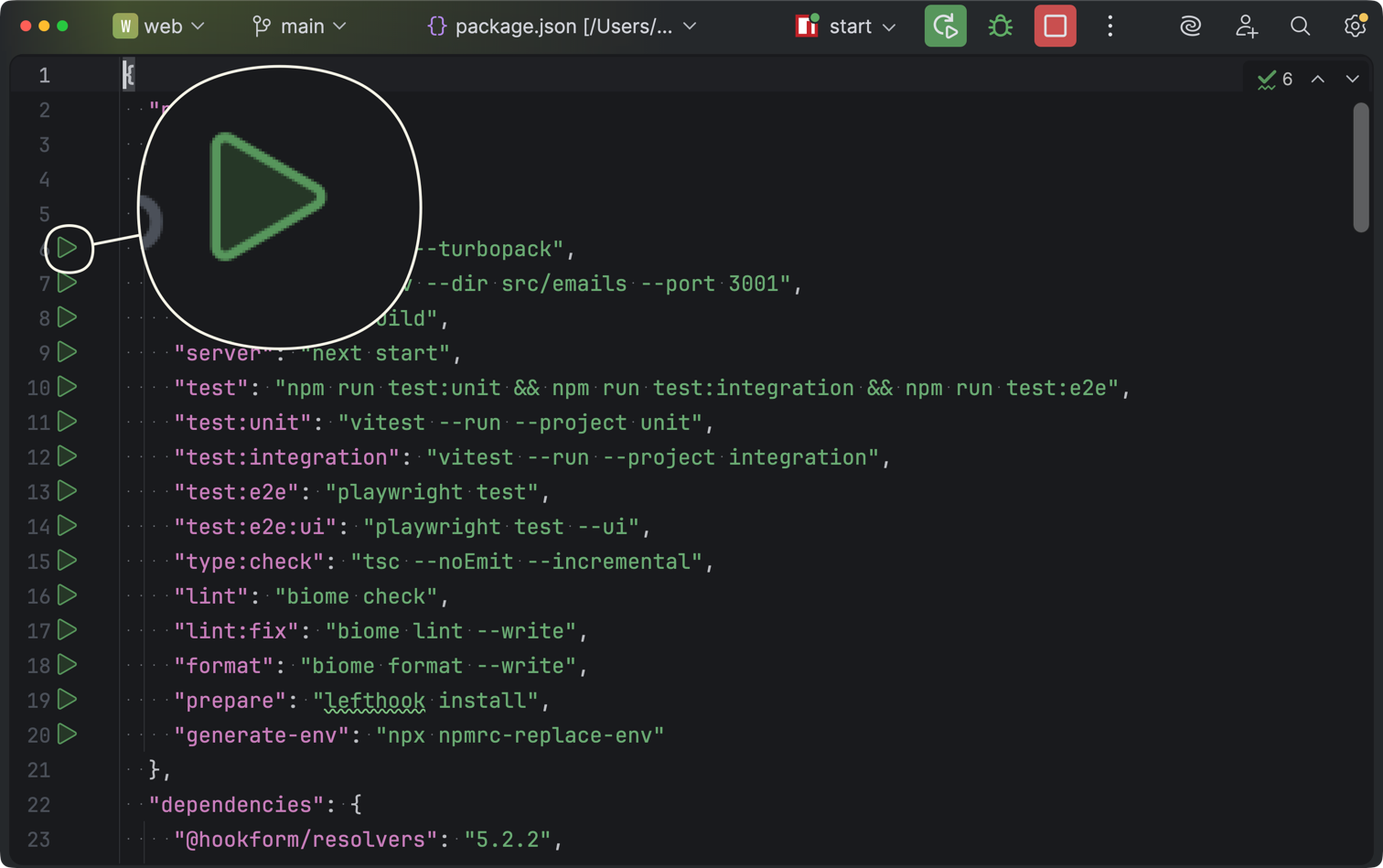
Those green triangles mean that we can Run Scripts through the IDE. We can click on them, or even better, use the Ctrl + Shift + R to trigger them.
You can (and should!) save the configurations you most often run. You can also reorder, delete, and debug them.
What's even cooler is that you can find diverse run triggers all over the code and in different files, for example, in test files.
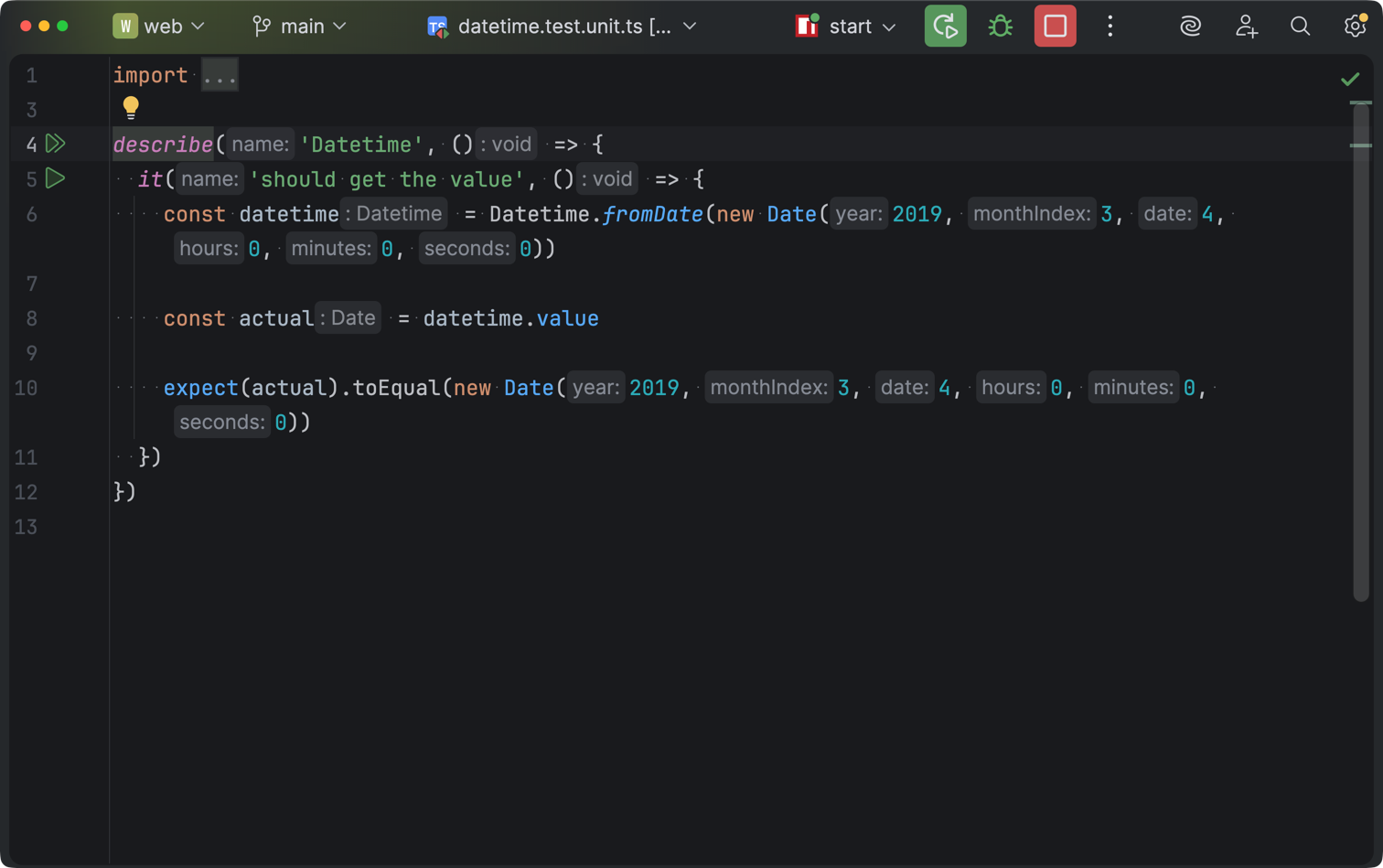
I love this feature since I can better practice TDD. Let me explain how. Whenever I'm changing code after I've written a test, I like running the previous test with Ctrl + R, which runs the previous Run Configuration.
- Create test
- Verify failing test
- Implement code
- Re-run the test with
Ctrl + R - Repeat
Pretty nifty.
#Plugins
The JetBrains MarketplaceOpen in a new tab is pretty BIG. Sure, it might not be as big as others' but I feel like everything is already integrated in the IDE, so there's no need to installl too many plugins. These are some plugins that I recommend you try:
- Key Promoter XOpen in a new tab: Acts like "ClippitOpen in a new tab" for shortcuts. If you use the mouse for an action, it notifies you of the keyboard shortcut and tracks how often you missed the opportunity to use it. Great for learning!
- Quokka.jsOpen in a new tab: Amazing for files. It executes JavaScript/TypeScript in real-time, displaying values and errors directly next to the code as you type. I use it to teach workshops or courses.
- Code With MeOpen in a new tab: Useful for pair programming
- camelCaseOpen in a new tab: I use it quite often for switching between different cases (kebab-case, SNAKE_CASE, PascalCase, camelCase, snake_case, or space case).
But apart from these, I don't really feel like I need to configure my IDE with tons of third-party extensions that bog down performance.
#Multi-cursor
This is such a great tool that there's an entire talk from a colleague of mine about this:
#Other Tips & Tricks
The incredible number of features in the IDE is so big that fitting everything in a section with a description would make this post quite long. So this is a quick list of other tips and tricks. Enjoy!
- Live Templates: Create custom snippets (e.g., for imports or testing structures) to avoid typing boilerplate code repeatedly.
- Emmet: Use EmmetOpen in a new tab for HTML/CSS execution. Type abbreviations and hit
Tabto expand complex tag structures instantly. - Wrapping & Unwrapping:
- Unwrap: Use
Option + Enteron a tag to remove it while keeping the content. - Wrap: Use
Cmd + Option + J(Surround with Emmet) to wrap code blocks in new tags. - Toggle breakpoints with
Cmd + F8. - Run in debug mode with
Ctrl + Shift + D. - Resolve merge conflicts using the built-in "Magic Wand" feature which automates simple conflict resolution.
- Use
Ctrl + V(VCS Operations) to quickly access Git actions like commit, branches, or history. - LightEdit Mode: Use the command line tool to open files in "LightEdit" mode for quick edits without loading the full IDE
webstorm -e ..
#Conclusion
I just ️ Webstorm, and I hope I showed you why in this post.